
eBook Cover Size: Kindle Pixels, Ratio and File Rules
An eBook has two covers: the image on the store page and the one inside the file. KDP’s pixel, ratio and format rules cover both.
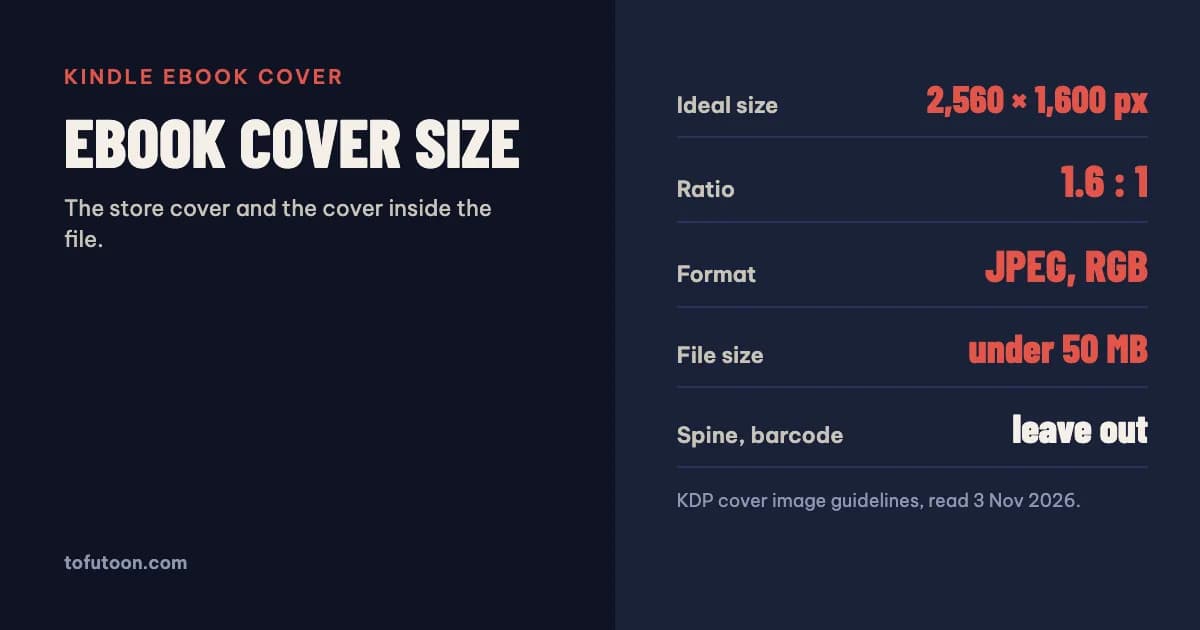
The ideal eBook cover size for Kindle is 2,560 pixels tall by 1,600 pixels wide, a height-to-width ratio of 1.6:1, saved as a JPEG in RGB and under 50 MB. That is the marketing cover shown on the Amazon store page. An EPUB also carries an internal cover inside the file, which must match it. Unlike a paperback cover, an eBook cover is the front only: no spine, no back and no barcode.
What size should an eBook cover be?
According to KDP’s cover image guidelines, the recommended marketing cover is 2,560 pixels in height by 1,600 pixels in width, with a resolution of 300 PPI, JPEG as the preferred format and RGB colour (KDP: Cover Image Guidelines for Kindle eBooks). Uploads that break the hard limits fail: accepted formats are JPEG, PNG, non-animated GIF and TIFF, with no SVG; the longest side must be at least 500 pixels to display on the website; no side may exceed 10,000 pixels; and the file must stay under 50 MB. If you upload something smaller than 2,560 × 1,600, KDP shows a warning, and it advises against stretching a small image up to size because that lowers quality. CMYK files are accepted but converted to RGB automatically, which can shift colours, so export in RGB yourself. KDP also asks for a cover centred on the page, so a full-page image appears as a full-screen image on the device.
Why do KDP’s cover numbers seem to disagree?
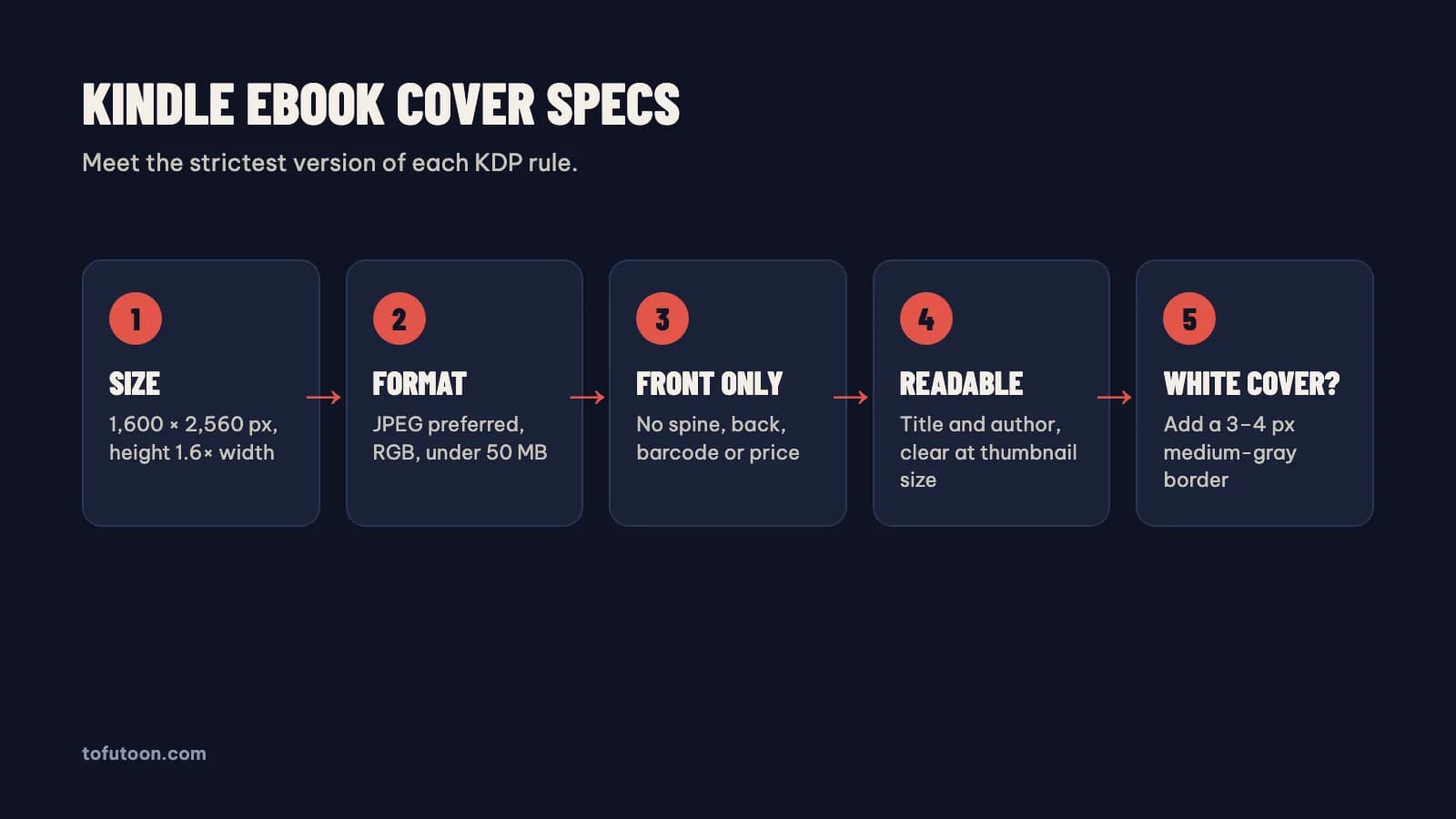
KDP publishes two cover pages, and they do not match exactly. The newer guidelines page accepts covers with at least 500 pixels on the longest side and lists JPEG, PNG, GIF and TIFF. The older “What criteria does my eBook’s cover image need to meet?” page names TIFF or JPEG only, a minimum of 1,000 pixels tall and 625 wide, and lists 72 dpi in its table while recommending 300 PPI in a note below it (KDP: eBook cover criteria). Both agree on the ideal of 2,560 × 1,600 pixels, a ratio of at least 1.6:1, under 50 MB, and RGB. The practical answer is to meet the strictest version of each rule: a JPEG at 2,560 × 1,600 pixels, saved with light compression. DPI on its own does not matter for a screen image; the pixel dimensions do. A file built that way passes both pages and still looks sharp on high-resolution tablets.
What must the cover show, and what must it leave out?
KDP’s checklist asks for the title and the author or contributor name on the cover, spelled exactly as on the Amazon detail page, and in the same language as the book. The cover must not include a spine, a barcode, a back cover or an inside flap, so a flattened paperback wrap is the wrong file. It must not mention prices or temporary promotions, and it must not contain typos, watermarks or leftover template text. Text has to stay clear and readable, not blurred, cut off or fading into the background. One design tip from KDP is worth copying: covers with white or very light backgrounds seem to disappear against the white store page, so add a narrow 3 to 4 pixel border in medium gray. Finally, the same image also appears as a small thumbnail in Amazon search results, so check that the title is still readable at that size.
How do you set the cover inside an EPUB?
The internal cover is the image inside the eBook file itself. KDP asks for a large, high-resolution internal cover, because quality review fails books whose cover is too small, and it should match the marketing cover. Do not add a separate HTML cover page as well: KDP warns that this can make the cover appear twice or make conversion fail. In an EPUB 3 file the preferred method is to mark the image in the package manifest with properties="cover-image"; an older meta name="cover" method also validates. You rarely edit this by hand. Tools such as calibre’s editor have an Add cover function that inserts the image, generates the wrapper and marks it correctly in the OPF file (calibre: Editing e-books). For a Word upload to KDP, leave the cover out of the manuscript entirely; KDP adds the cover you upload during title setup.
FAQ
Can I use my paperback cover as the eBook cover?
Use only the front panel. Crop the front cover from your print artwork, without bleed, spine, back or barcode, and export it at 2,560 × 1,600 pixels in RGB. The full print wrap is rejected as an eBook cover.
Do Apple Books and Kobo use the same cover size?
Each store publishes its own minimums, so check their help pages before upload. KDP’s ideal of 2,560 × 1,600 pixels in RGB is a high-resolution file to start from, but compare it with each store’s current rules rather than assuming one file fits all.
Next step: if you also publish a paperback, its cover is a different file with a spine and bleed; get the exact size from the free KDP cover calculator and read how the math works in KDP cover size and spine width. Building the EPUB itself from text? Try the TXT to EPUB converter. The book formatter we are developing for Windows and Mac (pay once, works offline) exports the EPUB with its internal cover set, plus a print PDF, from one Word manuscript. It is not out yet; join the waitlist.