
How to Format a Book for Kindle: KDP eBook Rules
A Kindle eBook reflows on every screen, so print habits break it. KDP’s manuscript rules, and the print-only parts to strip out first.
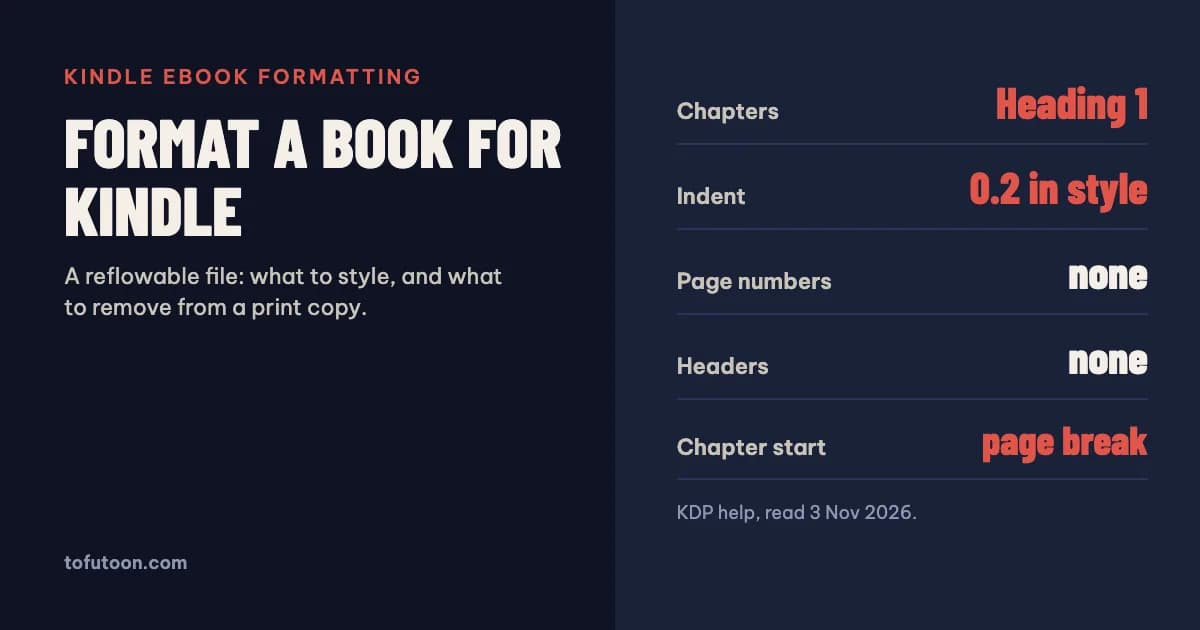
Formatting a book for Kindle means preparing a reflowable file: the reader picks the font size, so there are no fixed pages. In practice you style chapter titles as Heading 1, indent paragraphs with a style instead of Tab, put a page break before each chapter, build a linked table of contents, and remove page numbers, headers, footers and the cover image from the file. KDP then accepts the result as DOCX, EPUB or KPF.
Why is Kindle formatting different from print formatting?
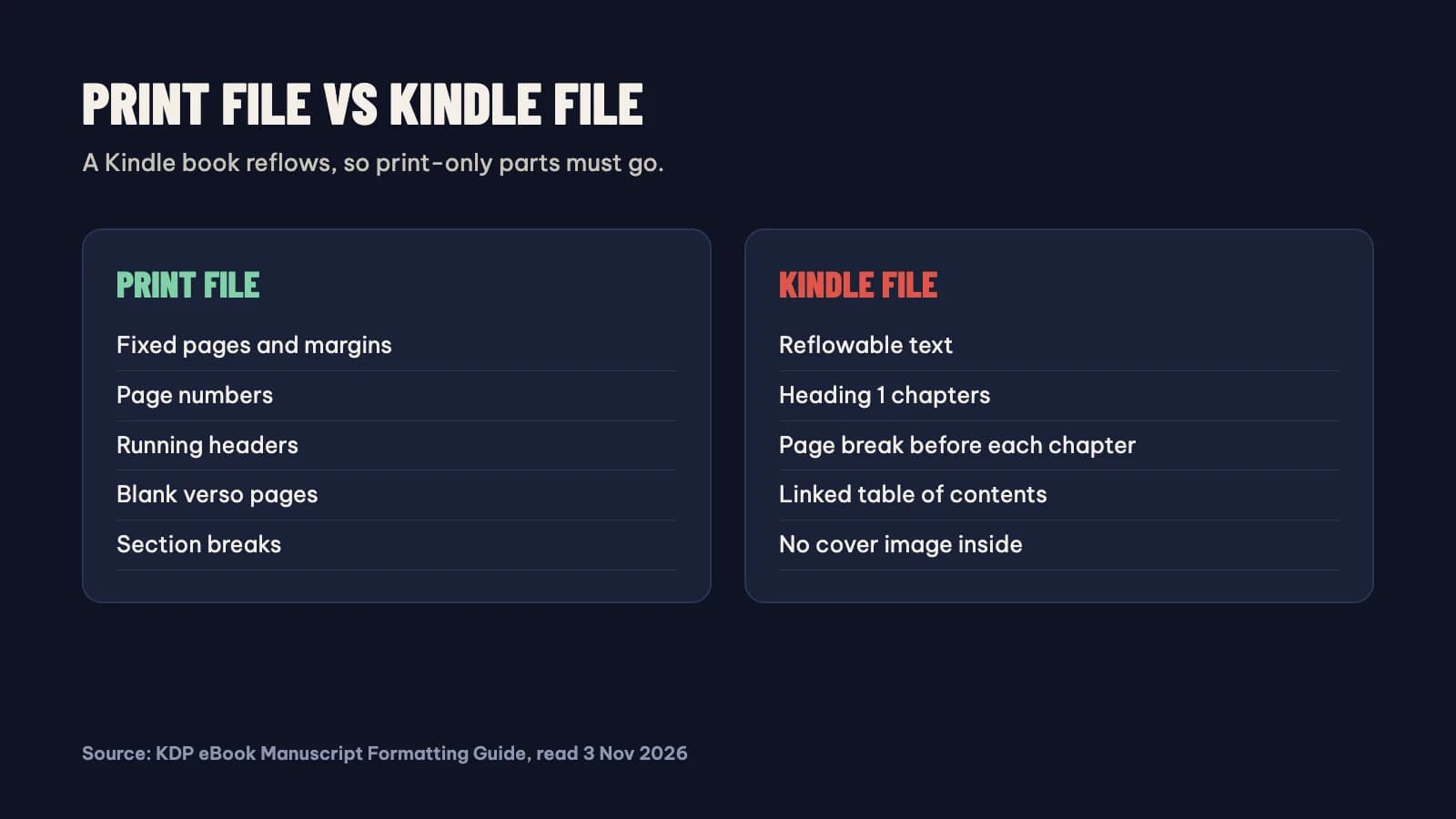
A Kindle book is reflowable: text re-wraps to fit a phone, a tablet or an e-reader, at whatever size the reader chooses. According to KDP’s eBook formatting guide, page numbers and page count do not apply to eBooks, and eBooks do not have headers and footers, so you do not add them to the file (KDP: eBook Manuscript Formatting Guide). The same guide says a manuscript already published as a paperback must be reformatted to eBook guidelines to prevent formatting errors. That is the most common mistake: uploading the print PDF or the print Word file with its section breaks, running headers and blank verso pages. On a Kindle those turn into empty screens and stray text. Keep the print file as it is and make a separate copy for the eBook, then remove the print-only parts before you change anything else.
How should paragraphs and chapters be set up?
Paragraph indents must come from a style, because KDP notes that Tab spacing does not convert to Kindle. Its guide modifies the Normal style: first-line indent 0.2 inch (5 mm), 0 points before and after, single line spacing. Chapter titles get Heading 1, which KDP also uses later to build the table of contents. Between chapters, insert a page break (Insert → Page Break) so each chapter starts on a new screen. Hard returns are the other trap: press Enter only to start a new paragraph, never at the end of each line or to push text down the page, because those returns survive into the eBook as gaps. Turn off Track Changes before saving. Text boxes and shapes used to draw diagrams do not convert well, so KDP recommends inserting such visuals as images instead. Drop caps are supported, but KDP suggests adding them in Kindle Create rather than in Word.
Which file should you upload: DOCX, EPUB or KPF?
KDP recommends three formats for eBooks: DOC or DOCX, KPF and EPUB (KDP: supported eBook formats). A clean Word file converts well in most cases; KDP warns that complex formatting may not. KPF is the file exported by Kindle Create, Amazon’s free formatting app, which adds themes and typesetting on top of your Word text. EPUB is accepted when it follows the Kindle Publishing Guidelines, and it is the only one of the three that also works in other stores such as Apple Books, Kobo and Google Play Books. KDP also takes HTML, RTF and TXT, and PDF only for some languages; a PDF is fixed pages, so it is a poor source for a reflowable book. MOBI is no longer accepted. If you sell only on Amazon, DOCX or KPF is simplest; if you sell wide, build one EPUB and use it everywhere.
What about the cover, images and file size?
Do not put the cover image inside the manuscript. KDP adds the cover you upload during title setup, and the cover image guidelines warn that adding an HTML cover page as well can make the cover appear twice or fail conversion (KDP: Cover Image Guidelines). The marketing cover is a separate image, ideally 2,560 × 1,600 pixels. Images inside the book should be sharp but not oversized, because file size costs money at the 70% royalty rate: KDP charges a delivery cost of $0.15 per MB in the US (KDP: Digital Book Pricing Page). A text-only novel is usually small enough that this barely matters; an illustrated book can lose a large part of its royalty to delivery. Footnotes are allowed and become linked endnotes on upload, so they must link both ways. Check everything in Kindle Previewer on the phone, tablet and e-reader views before you publish.
Kindle formatting checklist
- Copy the print file; remove page numbers, headers, footers, section breaks and blank pages.
- Normal style with a 0.2 inch first-line indent; no Tab indents, no line-end returns.
- Heading 1 on every chapter title, a page break before each chapter.
- A title page, plus copyright and dedication if you want them; a linked table of contents.
- No cover image in the file; images inserted as pictures, not drawn with shapes.
- Preview in Kindle Previewer, then upload DOCX, EPUB or KPF.
FAQ
Do I need Kindle Create to format a Kindle book?
No. KDP accepts a well-styled Word file directly. Kindle Create adds themes, drop caps and chapter-start images, and exports a KPF file (and an EPUB for reflowable books). It is optional, and KDP lists publishing outside Kindle as unsupported.
Why does my Kindle book show blank pages?
Usually because print section breaks, several page breaks in a row, or stacked empty paragraphs survived from a print file. Remove them, keep one page break before each chapter, and preview again.
Next step: if your book starts as plain text, build a clean EPUB with the free TXT to EPUB converter; if you need to turn an existing EPUB back into an editable file, use EPUB to Word. For which file Amazon and Send to Kindle accept today, see EPUB or MOBI for Kindle. If you would rather not keep a print file and a Kindle file in sync by hand, that is the job of the book formatter we are developing: a pay-once Windows and Mac app that makes both from one Word manuscript, offline. It has no release date yet; join the waitlist.