
Kindle Create: What It Does Well and Where It Stops
Amazon’s free Kindle Create turns a Word file into a Kindle book and a print interior. What it supports, and the limits KDP lists itself.
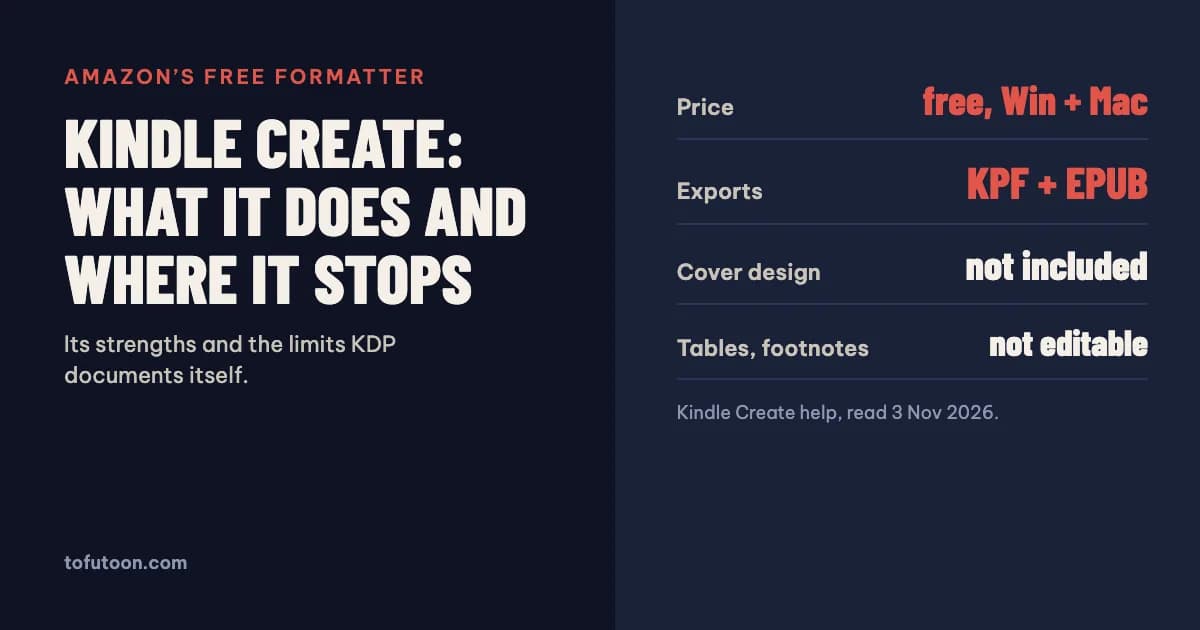
Kindle Create is Amazon’s free desktop app for Windows and Mac that turns a finished manuscript into a Kindle eBook and, for text-heavy books, a print interior for KDP. It works best for novels, memoirs and essays with simple layouts. Its limits are documented by KDP itself: no cover design, no editing of tables, lists or footnotes, and no publishing outside Kindle. Everything below comes from KDP’s Kindle Create help pages, read on 3 November 2026.
What is Kindle Create?
Kindle Create is a free formatting tool from Amazon that imports a DOC or DOCX manuscript, or a PDF, and prepares it for KDP. According to KDP, it makes three kinds of books (KDP: Getting Started with Kindle Create). A Word file becomes a reflowable eBook, the normal Kindle format where readers can resize text, and the same project can be submitted as a paperback or hardcover of any trim size. A PDF becomes a Print Replica eBook, which keeps the printed look for textbooks, travel books or cookbooks but only works on some devices. A PDF or JPEG pages can also become a comic eBook with Guided View panels. It runs on Windows 10 or later and macOS 10.15 or later, with 8 GB of RAM recommended and 4 GB as a minimum. The interface is available in eight languages, including English, Spanish, Portuguese and Japanese.
What does Kindle Create do well?
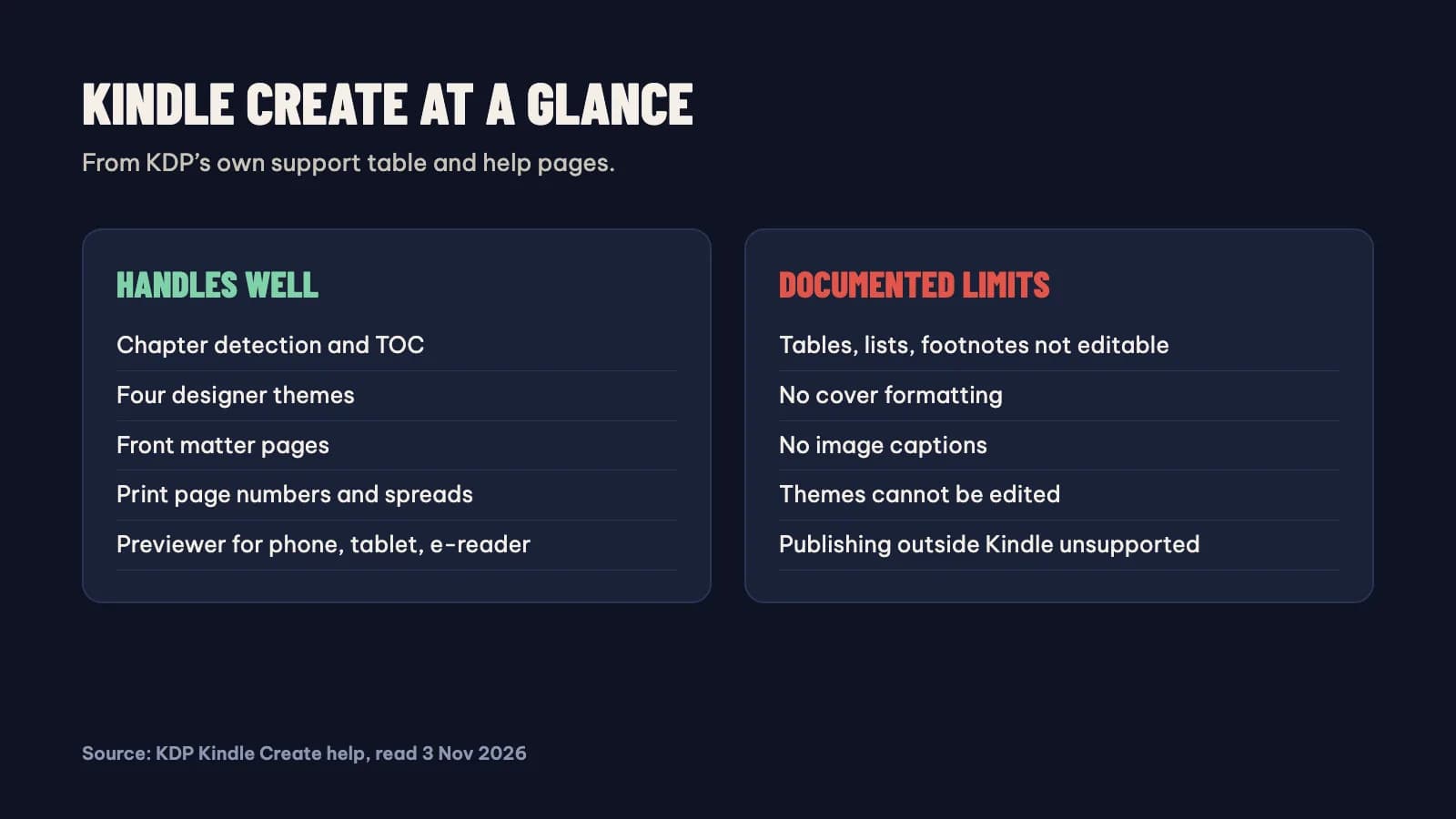
For a plain novel, Kindle Create removes most of the fiddly work. On import it detects possible chapter titles and builds both the table-of-contents page and the Kindle interactive menu from them (KDP: Prepare Reflowable and Print Books). You choose one of four themes designed by book designers, add front matter such as a title page, copyright page or dedication in a few clicks, and insert chapter-start images. For print, it resizes content and margins for the trim size you choose, numbers front matter in roman numerals and the body from page 1, puts title and chapter pages on the right-hand side, and reduces widows and orphans. Headers with the author name, title and page numbers are set under Print Settings. A built-in previewer shows the book on a tablet, phone and e-reader before you export.
What are the limits of Kindle Create?
KDP lists the limits in its own support table. Tables, lists, footnotes and some paragraphs with complex formatting cannot be edited inside Kindle Create; you fix them in Word and paste them back in. If you would rather lay out the print interior yourself, how to format a book in Word for KDP covers the settings. Image captions are unsupported. Cover formatting is unsupported, so the cover is made elsewhere, for example with KDP’s Cover Creator. The four themes cannot be edited, so you cannot set your own fonts or spacing beyond what a theme offers. Reflowable books are not supported in Japanese. For print, KDP’s hardcover guide adds a further note: Kindle Create is not supported for books with tables, footnotes or images that bleed (KDP: Format Your Hardcover). Finally, publishing outside Kindle is listed as unsupported. If your book has footnotes, data tables or full-bleed photos, or if you plan to sell on Apple Books, Kobo or in bookshops, plan for a different tool for at least part of the work.
What files does Kindle Create export?
The app exports two formats: KPF (Kindle Package Format), which KDP prefers for Kindle eBooks and print books, and EPUB, which is available only for reflowable books. The EPUB export loses some Kindle features, according to KDP: images do not bleed to the edge of the screen, drop caps taller than three lines do not render correctly, and chapter-start images are not placed. Save the project as well as the export. The KCB file holds your project and is what you reopen to make changes later; the KPF is only for uploading. Back up the folder that contains the KCB file, because without it an update means starting again from Word. If Kindle Create starts throwing import errors, KDP’s first troubleshooting step is to check Help → About and make sure the app was updated within the last three months.
When should you use something else?
- You sell wide: Apple Books, Kobo and Google Play need an EPUB you control, and KDP lists publishing outside Kindle as unsupported.
- Your book has footnotes, tables or complex lists that you need to edit as part of the layout.
- You want your own typography: the four themes cannot be edited.
- You need a print cover: Kindle Create does not format covers.
- Your print interior has images that bleed to the page edge.
FAQ
Is Kindle Create free?
Yes. Amazon offers Kindle Create as a free download for Windows 10 or later and macOS 10.15 or later. Its files are meant for KDP; KDP lists publishing its EPUB outside Kindle as unsupported.
Can I edit a Kindle Create book later?
Yes, if you kept the KCB project file. Open it in Kindle Create, make the change, export a new KPF and upload it to KDP. The KPF alone cannot be reopened for editing.
Next step: if your book is a straightforward novel for Amazon only, Kindle Create is a sensible free start. If you need an EPUB for other stores, start from plain text with the free TXT to EPUB converter, and check your trim with the KDP trim size guide. For the cases Kindle Create leaves out, such as your own typography or one manuscript feeding a print PDF and an EPUB for every store, we are building a pay-once formatter for Windows and Mac that works offline. It is not released yet; sign up for the waitlist.