
How to Format a Book in Word for a KDP Paperback
Word can produce a print-ready KDP interior if you set things in the right order. This walk-through follows the settings in KDP’s own Word guide.
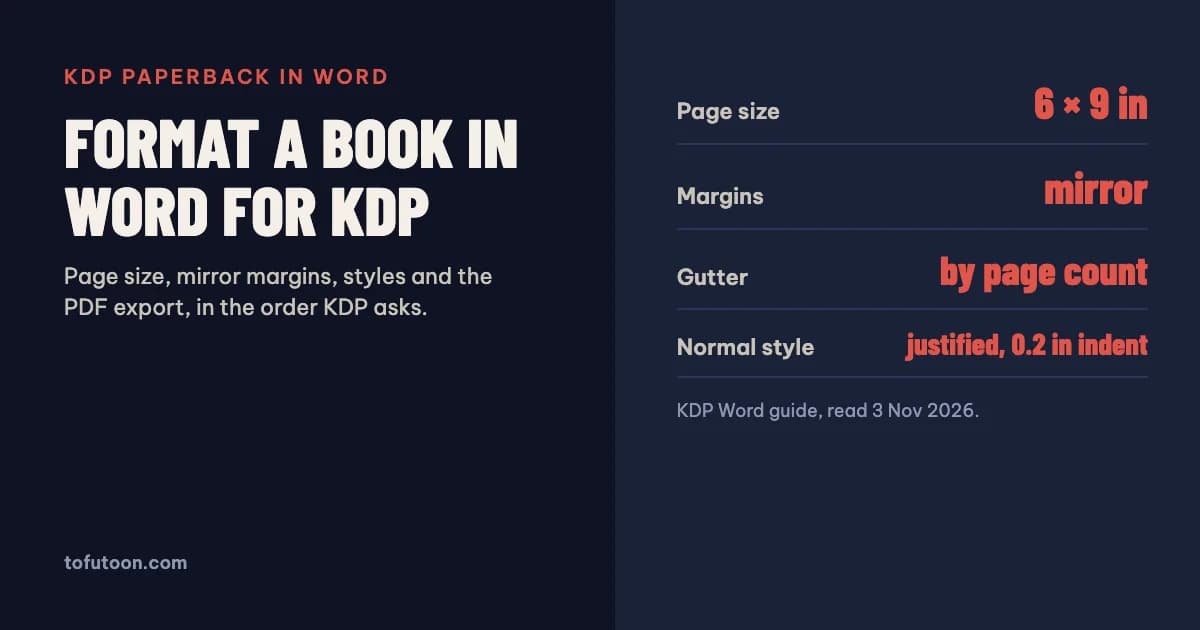
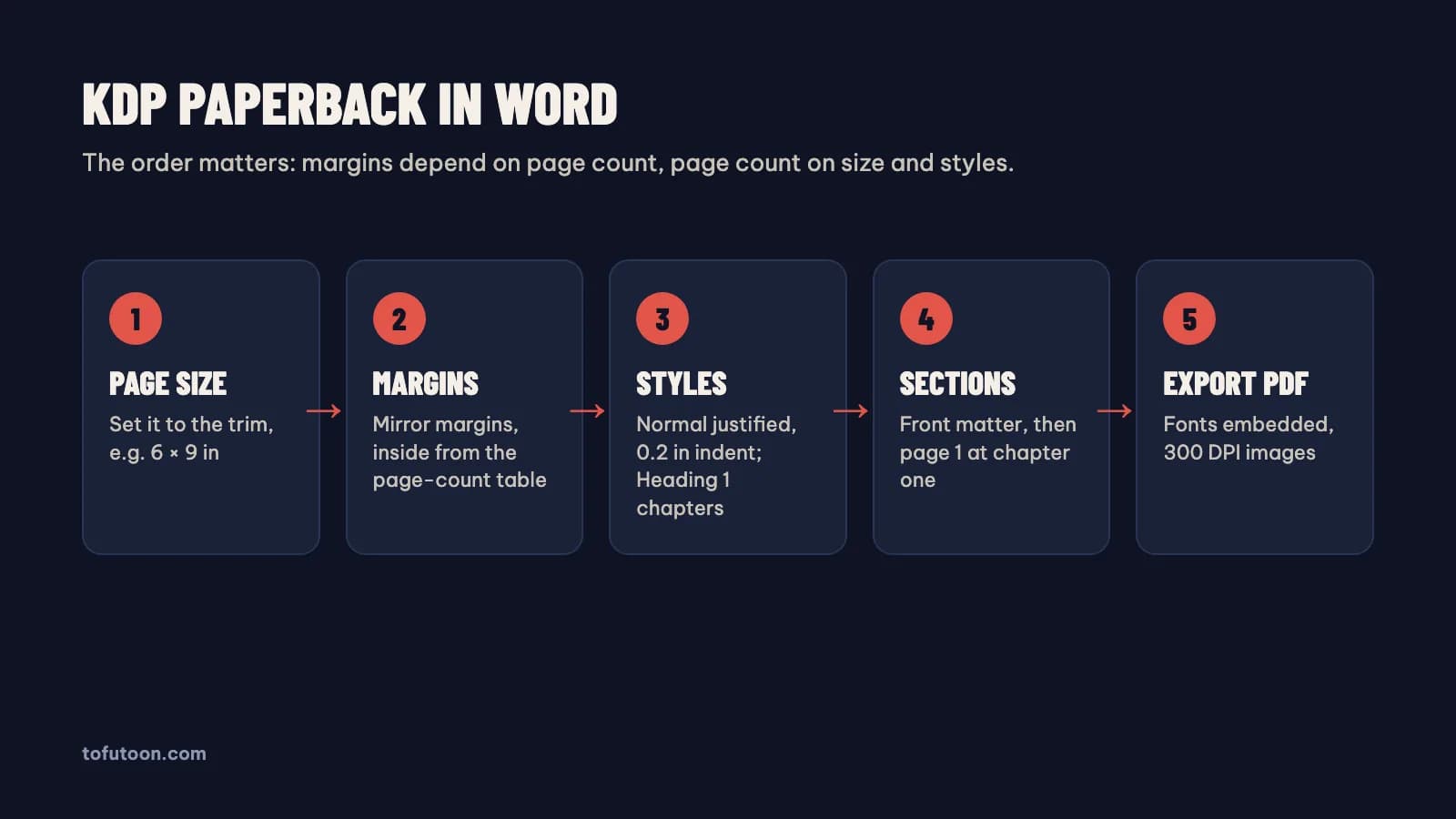
To format a book in Word for a KDP paperback, set the page size to your trim size, switch on mirror margins, choose the inside margin that matches your page count, build the text with styles, then save a PDF with fonts embedded. The order matters: margins depend on page count, and page count depends on page size and styles. Every setting below comes from KDP’s own Word guide and help pages, read on 3 November 2026.
Which page size and margins does KDP need in Word?
The page size in Word is your trim size, and the margins are mirrored so the inside edge of every page gets the extra space. According to KDP’s Word guide, you set Layout → Size → More Paper Sizes to the trim, for example 6 × 9 inches, then Layout → Margins → Custom Margins with Multiple pages set to Mirror margins, and you leave the Gutter field empty (KDP: Format a Paperback Manuscript). The inside margin grows with page count: 0.375 inch for 24 to 150 pages, 0.5 inch for 151 to 300, 0.625 inch for 301 to 500, 0.75 inch for 501 to 700, and 0.875 inch for 701 to 828. Outside margins must be at least 0.25 inch without bleed and 0.375 inch with bleed. KDP itself suggests 1 inch at the top and bottom when you use headers. If the page count later crosses a band, for example from 298 to 305 pages, go back and widen the inside margin. The same page count also sets the spine width, as explained in KDP cover size and spine width.
How should you set up styles for the body text?
Styles keep every paragraph identical, so you change the look once instead of fixing paragraphs one by one. KDP’s guide modifies the Normal style for the body: its example uses Garamond at 10 point, justified alignment, a first-line indent of 0.2 inch, 0 points before and after, and single line spacing. Apply Normal to the whole manuscript, then use Heading 1 for chapter titles. KDP also explains the conventions printers expect (KDP: Front, Body and Back Matter): body text is fully justified, paragraphs are indented with no blank line between them, the first paragraph of a chapter has no indent, and chapters start on a new page. The first chapter starts on a right-hand page. Two habits cause most trouble here: pressing Tab to indent and pressing Enter several times to push text down. Both look fine on screen but break as soon as the page size, font or margins change.
What goes in the front matter, and in what order?
Front matter is everything before chapter one, and KDP lists the usual order: half title, title, copyright, reviews and praise, dedication, table of contents, preface, acknowledgments, prologue, introduction. Most books need only a few of these. The rules that trip people up are about page sides. The half title and title page fall on right-facing pages, the copyright page is the first left-facing page after the title, and none of these carry page numbers or headers. The table of contents also starts on a right-facing page and must use the chapter titles exactly as they appear in the body. In Word, a section break (Next Page or Odd Page) between front matter and chapter one lets you restart numbering at 1 and switch headers on only where they belong. Headers follow a fixed pattern: the author name on left pages and the book title on right pages.
Should you start from a KDP Word template?
A KDP template saves the page-size and margin step, which is where most first attempts go wrong. KDP offers blank templates, with the size and margins already set, and templates with sample content that include a formatted title page, table of contents and chapters (KDP: Paperback and Hardcover Manuscript Templates). There is a catch with the sample-content versions: any placeholder text left in the file can cause an upload error or a rejection, so search for it before you export. KDP also offers Amazon Endure, its own font designed to reduce page count and therefore printing cost; it does not cover Japanese, Kanji or Cyrillic. Pasting your manuscript into a template carries over old formatting, so paste as plain text and re-apply styles. If your book has images that run to the edge of the page, a no-bleed template is the wrong start, because bleed changes the page size.
How do you export a print-ready PDF from Word?
KDP recommends uploading the interior as a PDF with all fonts embedded. In Word for Windows, go to File → Options → Save, tick “Embed fonts in the file”, and make sure “Embed only the characters used in the document” and “Do not embed common system fonts” are both unticked (KDP: Paperback Fonts). KDP sets a minimum text size of 7 point and asks for images of at least 300 DPI. Fonts downloaded from free font sites sometimes refuse to embed for technical or licensing reasons, so test a one-page PDF first; in Adobe Acrobat, File → Properties → Fonts should show every font as “Embedded” or “Embedded Subset”. Then check the finished PDF for blank pages you did not intend, leftover template text, and a title and author name that match your KDP book details exactly. The page count of this PDF is the number your cover is built on.
Word settings checklist
- Page size equals the trim size (add 0.125 inch to the width and 0.25 inch to the height only if the book has bleed).
- Mirror margins on, Gutter field empty, inside margin from the page-count table.
- Normal style for body text, Heading 1 for chapters, no Tab indents or stacked blank lines.
- Section breaks after the front matter; page numbers restart at chapter one.
- Fonts embedded, text 7 point or larger, images 300 DPI, no placeholder text.
FAQ
Can I use the same Word file for the eBook?
Not as it is. KDP notes that a manuscript formatted for paperback must be reformatted for eBook, because eBooks reflow: page numbers, headers and footers do not apply, and the cover image should not be inside the file. Keep a copy of the print file and strip those parts for the Kindle version.
Why did KDP reject my margins after I edited the book?
The inside margin depends on page count. If edits pushed the book from one band to the next, for example past 300 pages, the inside margin must grow from 0.5 to 0.625 inch. Re-check the table every time the page count changes.
Next step: once the PDF is exported, take its exact page count to the free KDP cover calculator for your cover size, and compare formats in the KDP trim size guide if you have not fixed the trim yet. Doing all of this by hand in Word is exactly the work we want to remove: we are building a pay-once book formatter for Windows and Mac that turns a Word manuscript into a KDP print PDF and an EPUB, offline, with the margins set from the page count. The waitlist hears first when it is ready.