
What Is OCR? Meaning, How It Works and Where It Fails
OCR turns a photo, screenshot or scan into text you can copy and search. Here is how it works step by step, and what six test images show about where it breaks.
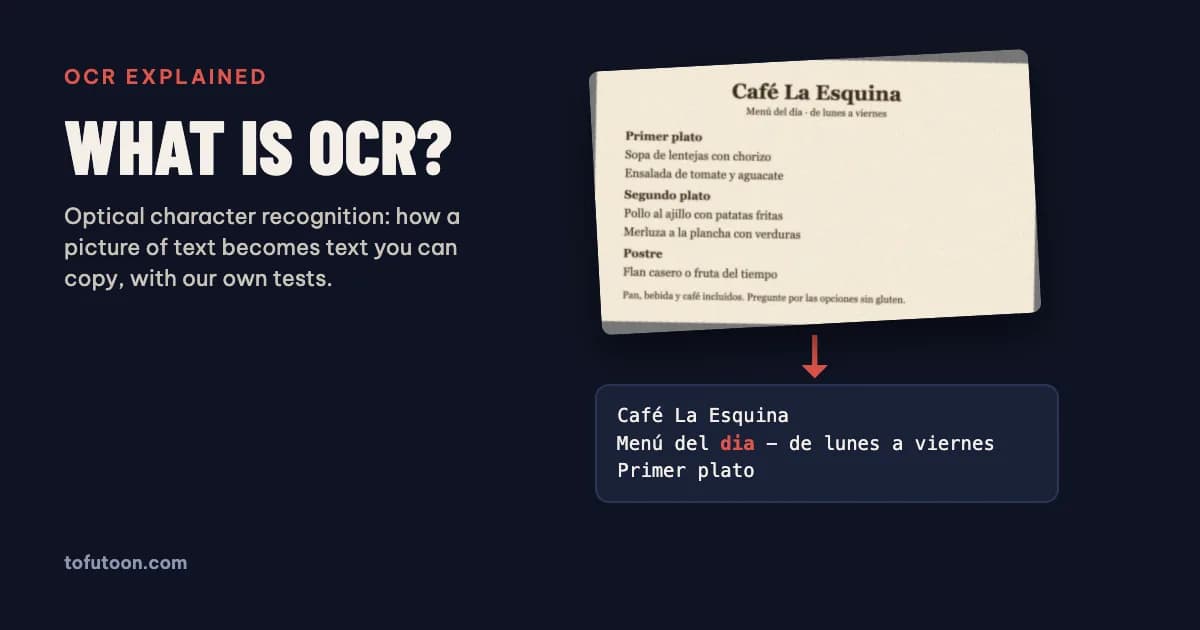
OCR stands for optical character recognition. OCR is a technology that reads the letters in a picture, such as a screenshot, a phone photo of a menu or a scanned page, and turns them into real text that you can copy, search and edit. Without OCR, a computer sees a scan as a grid of coloured dots, the same as a holiday photo. So what is OCR in daily life? It is the feature that lets you search a scanned contract, copy a quote out of a screenshot, or pull the dialogue out of a comic page. It works very well on clean printed text and gets worse with blur, tiny letters, handwriting and unusual fonts. On six test images we made, four came back exact or with one full stop missing, and a shrunken copy lost 16 of 55 words. To try it on your own image, our free Image to Text converter runs OCR in the browser, so the picture is not uploaded.
What does OCR stand for?
In software, OCR stands for optical character recognition: "optical" because the input is an image, and "character recognition" because the job is to decide which letter, digit or symbol each shape is. You will also see the same feature under other names. Apple calls it Live Text, Microsoft has Text Extractor in PowerToys, and many apps just call it "copy text from image" or "scan to text". They all do OCR. For example, when you drag across the words in a photo on a Mac and choose Copy Text, Live Text is running OCR on that photo. One trap when you search: in UK schools, OCR is also the name of an exam board, Oxford, Cambridge and RSA, which has nothing to do with images. If a result talks about GCSE papers and mark schemes, it means the exam board. This article is about the software.
How does OCR work, step by step?
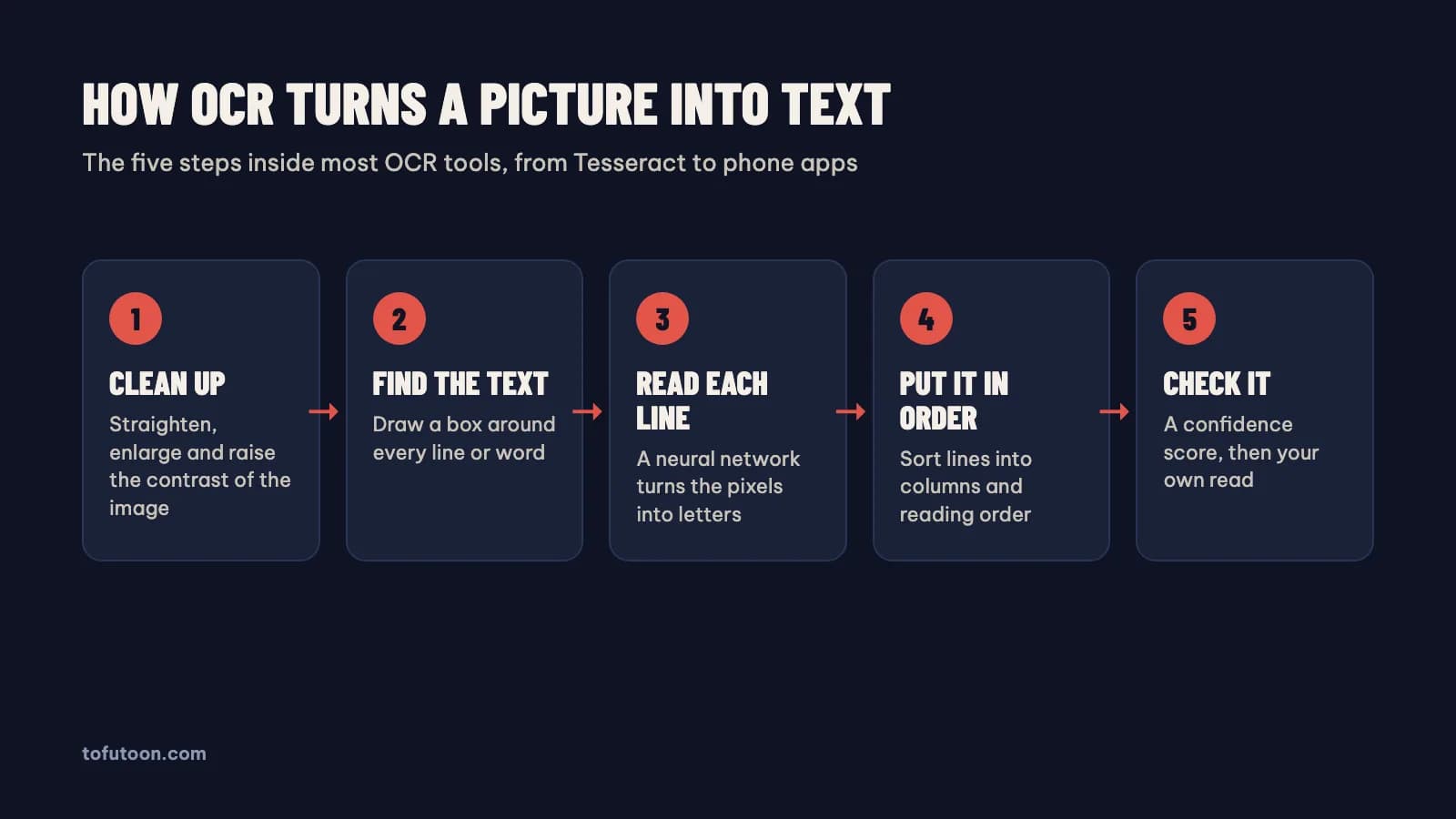
Most OCR tools run the same five steps. First, they clean up the image: straighten a tilted page, enlarge small text and raise the contrast. Second, a detection step draws a box around every line or word, so the engine knows where text is and where the picture is. Third, a recognition step reads each box and outputs letters. Modern engines do this with a neural network that reads a whole line at once; Tesseract, the open-source engine first written at Hewlett-Packard between 1985 and 1994, added a line-reading LSTM network in version 4. Fourth, the lines are put back in order, which is hard on pages with columns, tables or speech bubbles. Fifth, the engine reports how sure it is. The last step is yours: read the result against the image, because that confidence number can be wrong.
What does OCR get right, and where does it fail?
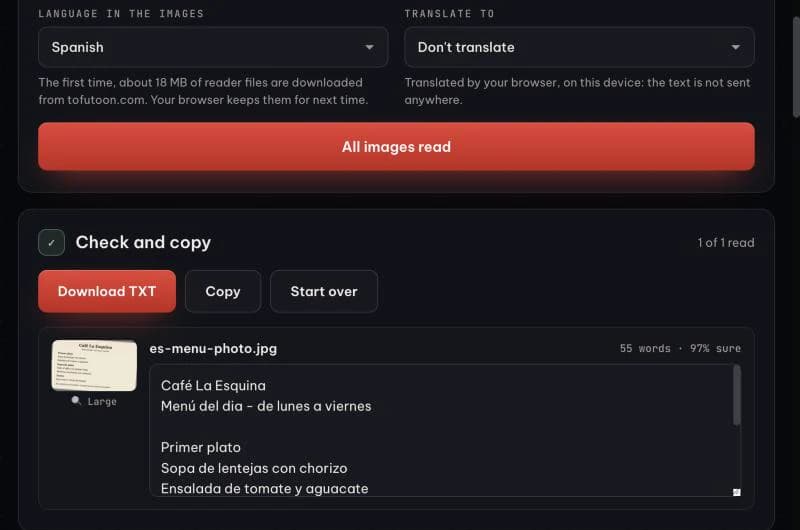
The short answer: clean printed text is the easy case, and small or blurry text is the hard one. To see real behaviour instead of claims, we made six test images with known text and read them with our free tool on an M4 Pro Mac on 2026-11-12. Clean images came back exact: a Spanish café menu (55 of 55 words), a Japanese shop notice (63 of 63 characters), a French poster with an outlined title on a dark background (30 of 30 words, accents included) and a Vietnamese chat (all 35 words, one full stop lost). Then we made the menu harder:
- As a phone-style photo, tilted 4 degrees, blurred and saved as a JPEG: 54 of 55 words right. The one miss was "día" read as "dia", so accents are the first thing to go.
- Shrunk to 297 pixels wide, with letters about 8 pixels tall: 39 of 55 words right. "Menú" became "Xenú", "Sopa" became "Sope", and the last line turned into nonsense.
- On that shrunken image, the tool still said it was 93% sure. A high confidence number is not proof that the text is right.
How do you get better OCR results?
Better OCR results come from a better image far more than from a better tool. According to the Google Drive OCR help page, text should be at least 10 pixels high, and tables, columns, lists and footnotes are not likely to be detected. The six test images point the same way: the sharp menu read perfectly, while the same menu at 8-pixel letters lost almost a third of its words. So before you blame the tool, fix the input in this order. First, take a sharper photo in good light, held straight above the page. Second, screenshot at full size instead of zooming out, and never screenshot a screenshot. Third, crop away everything that is not text. Finally, set the language that is actually in the picture: the page of our free tool notes that reading Vietnamese with the English setting got about a quarter of the characters wrong, mostly accented letters.
Is OCR artificial intelligence?
Modern OCR is a narrow kind of AI: machine-learning models trained on huge numbers of text images. Older engines compared each letter with stored shapes; Tesseract still keeps that legacy mode next to its neural one. Newer toolkits such as PaddleOCR use one model to find text and another to read it, and some now add vision-language models that can describe a whole document, tables included. For example, an OCR engine does not know that a menu should say "día"; if the accent is blurred, it simply drops it. It is also not a chatbot. It does not understand the text or fix the meaning; it outputs what it thinks the pixels say. That is why a wrong letter in a price or a name goes straight through. Tools that send your image to a large AI model can read messier pictures, but the image then leaves your computer, which matters for contracts, IDs and unpublished work.
Do you need OCR for a PDF?
Only for a scanned PDF. A PDF made from Word or a website already contains real text: you can select a word with the mouse and search for it, and no OCR is needed. A scanned PDF is a stack of page photos, so selecting text selects nothing and search finds nothing. That kind of PDF needs OCR before you can copy or edit it. The ten-second test is to try selecting one word. If it highlights, copy or convert the file directly; if it does not, it is a scan. For one or two pages, a screenshot of each page pasted into the Image to Text converter is enough, since the tool reads images but not PDF files. For whole scans, the steps are in scanned PDF to Word.
Which OCR tool should you use?
Match the tool to the job. For text on your screen right now, the free tools built into the system are fastest: Text Extractor in Microsoft PowerToys (`Win + Shift + T`) and Live Text in Preview on a Mac. For a few images you would rather not upload, or a language your system does not read, use a browser tool that runs on your device, such as our Image to Text converter with 20 languages, Chinese, Japanese and Arabic included. Its first use downloads about 18 MB of reader files, then each image takes a couple of seconds. For files that may be uploaded, Google Drive converts PDFs and photos up to 2 MB. For whole folders, see best OCR software for PC. And for whole comic chapters, where reading order and voiceover matter, Tofu Image Text is our pay-once desktop app built for that job.
FAQ
What does OCR mean in simple words?
In simple words, OCR means a computer reading the letters in a picture. You give it a photo, a screenshot or a scanned page, and it gives you back text you can copy, paste, search and edit, instead of a picture you can only look at. The full name is optical character recognition. Phones and computers often hide it under friendlier names: Apple calls it Live Text, Microsoft has Text Extractor in PowerToys, and many websites say "image to text" or "copy text from image". For example, pointing a phone camera at a printed timetable and copying a departure time is OCR at work. So is searching a scanned PDF for a name. The result is only as good as the picture, so a quick read against the original is part of using it.
Can OCR read handwriting?
OCR is a poor fit for handwriting. Most engines, Tesseract and our free browser tool included, are made for printed text, and the page of our tool says so plainly. Neat block capitals sometimes read well; joined-up handwriting usually comes out as a mix of right words and nonsense. Some cloud services are trained on handwriting and do better, but they need your image uploaded to their servers, which may not suit letters, notes or forms with personal details. In practice, for a short handwritten note, retyping is often faster than fixing OCR output. For a long handwritten document that matters, try one page first, count the mistakes, and only then decide whether OCR saves any time at all compared with typing it.
How accurate is OCR?
OCR accuracy depends on the image more than on the engine. On clean printed text it is very accurate: four of our six test images came back exact or with one full stop missing, in Spanish, Japanese, French and Vietnamese. A tilted, blurred photo of the same menu lost one accent out of 55 words. Accuracy falls fast with small text, though. A copy shrunk to 297 pixels wide lost 16 of its 55 words, while the tool still showed 93% confidence. That gap between the confidence number and the real result is the main thing to remember. Always read the output against the image, and check numbers, prices, dates and names most closely, because one wrong digit changes the meaning.
Is OCR free?
OCR is free for most everyday use. PowerToys Text Extractor from Microsoft, Live Text from Apple, Google Drive and the open-source Tesseract engine cost nothing, and so does our browser-based Image to Text converter, with no account and no daily limit. The differences are elsewhere: Drive needs an upload and caps files at 2 MB, Tesseract runs from the command line, and the system tools copy one area of the screen at a time. Paid OCR apps add batch folders, a review screen with the page beside its text, and exports such as Word. They are worth paying for only when the same job repeats, for instance a folder of scanned pages or a comic chapter every week.
Next step: take one image you actually need text from, paste it into the free Image to Text converter, and compare the result with the picture line by line. That one check tells you more about OCR on your files than any accuracy figure. If your images are comic pages and you want the text as a script or voiceover, see Tofu Image Text.