
Scanned PDF to Word: get editable text, then fix layout
A scanned PDF is a stack of page images, so copy and paste returns nothing. Here is how to get editable Word text out of a scan and what to fix afterwards.
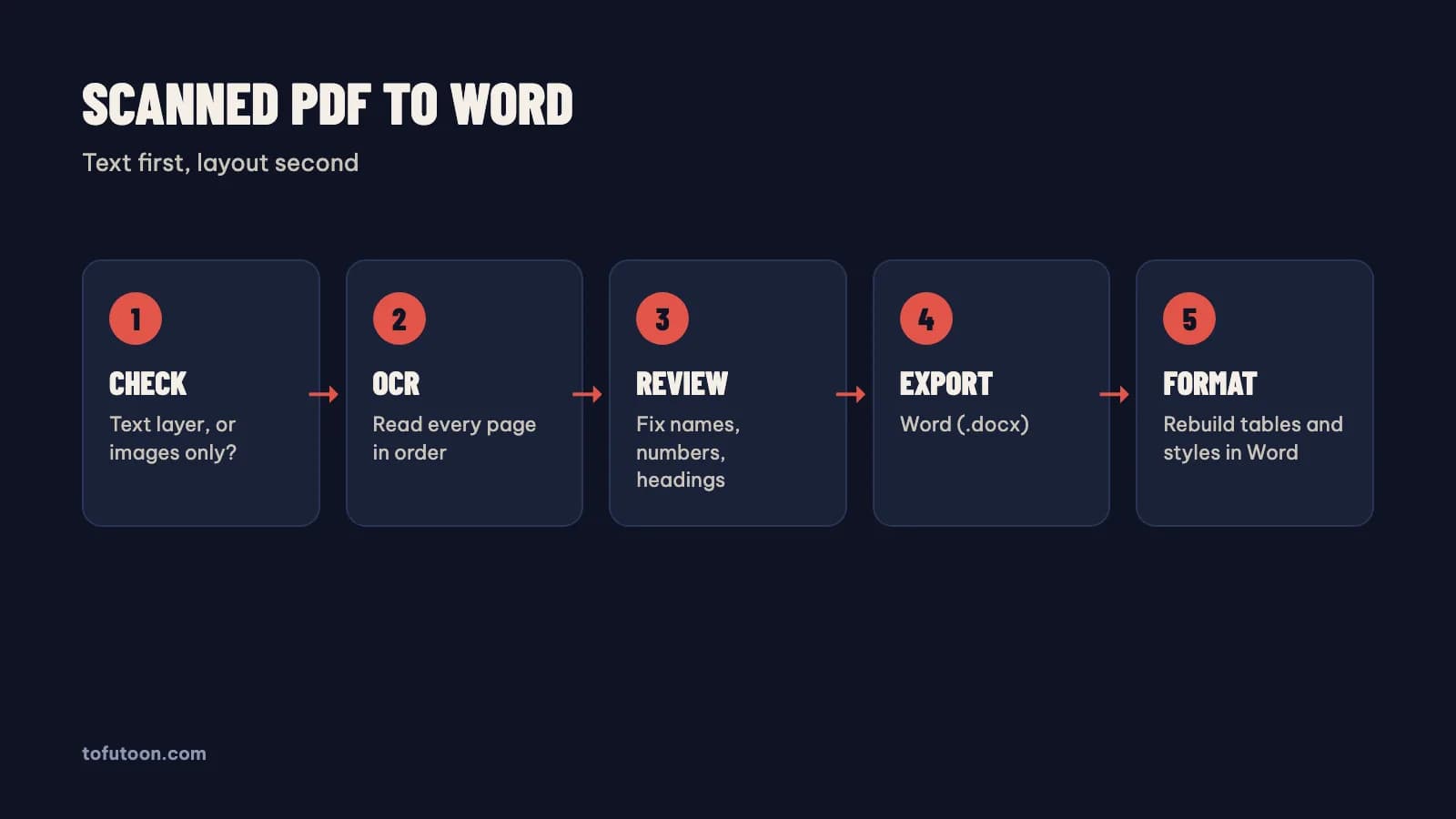
A scanned PDF is a PDF where every page is a picture of paper, with no text layer under the image. Selecting text in a scanned PDF selects nothing, so converting a scanned PDF to Word needs OCR (optical character recognition) first. The conversion has two parts. First, OCR turns each page image into text in reading order. Finally, Word from Microsoft holds the text, and the layout gets rebuilt by hand where needed. For example, a 30-page scanned report can become one editable .docx file, but tables, columns and footnotes usually need a formatting pass. The guide first shows how to tell a scan from a text PDF, then two routes: Google Docs and a desktop app. The last sections cover the review step and the layout fixes in Word, since those steps decide how usable the final document is.
How do you tell a scanned PDF from a text PDF?
A text PDF is a PDF with real characters inside, and a scanned PDF is a PDF of page images. The quick test takes ten seconds. First, open the PDF and try to select one word with the mouse. If the word highlights, the PDF has a text layer and can be copied or converted directly. Second, try the search box with a word you can see on the page. A scan returns no results, because there are no characters to search. In practice, a contract printed, signed and scanned on an office copier from Canon or HP is often a scan, while a PDF exported from Microsoft Word is a text PDF. Some PDFs mix both: typed pages plus a few scanned signature pages. Test two or three pages from different parts of the file, not only the first page.
How do you convert a scanned PDF to Word with Google Docs?
Google Docs is a free route for scanned PDFs that may be uploaded to the cloud. First, upload the PDF to Google Drive. Second, right-click the file and choose Open with Google Docs. Finally, choose File, Download, Microsoft Word. According to the Drive OCR help page from Google, the file should be 2 MB or smaller, text should be at least 10 pixels high, and documents must be right side up. The same page says lists, tables, columns, footnotes and endnotes are not likely to be detected. For example, a long scan above 2 MB needs splitting or compressing before conversion. The route works well for a few clean pages of plain text. The weak points are size limits, layout loss and privacy, because every file goes to Google. Contracts, medical records and unpublished manuscripts deserve a second thought before upload.
When does a desktop app help with scanned PDF to Word?
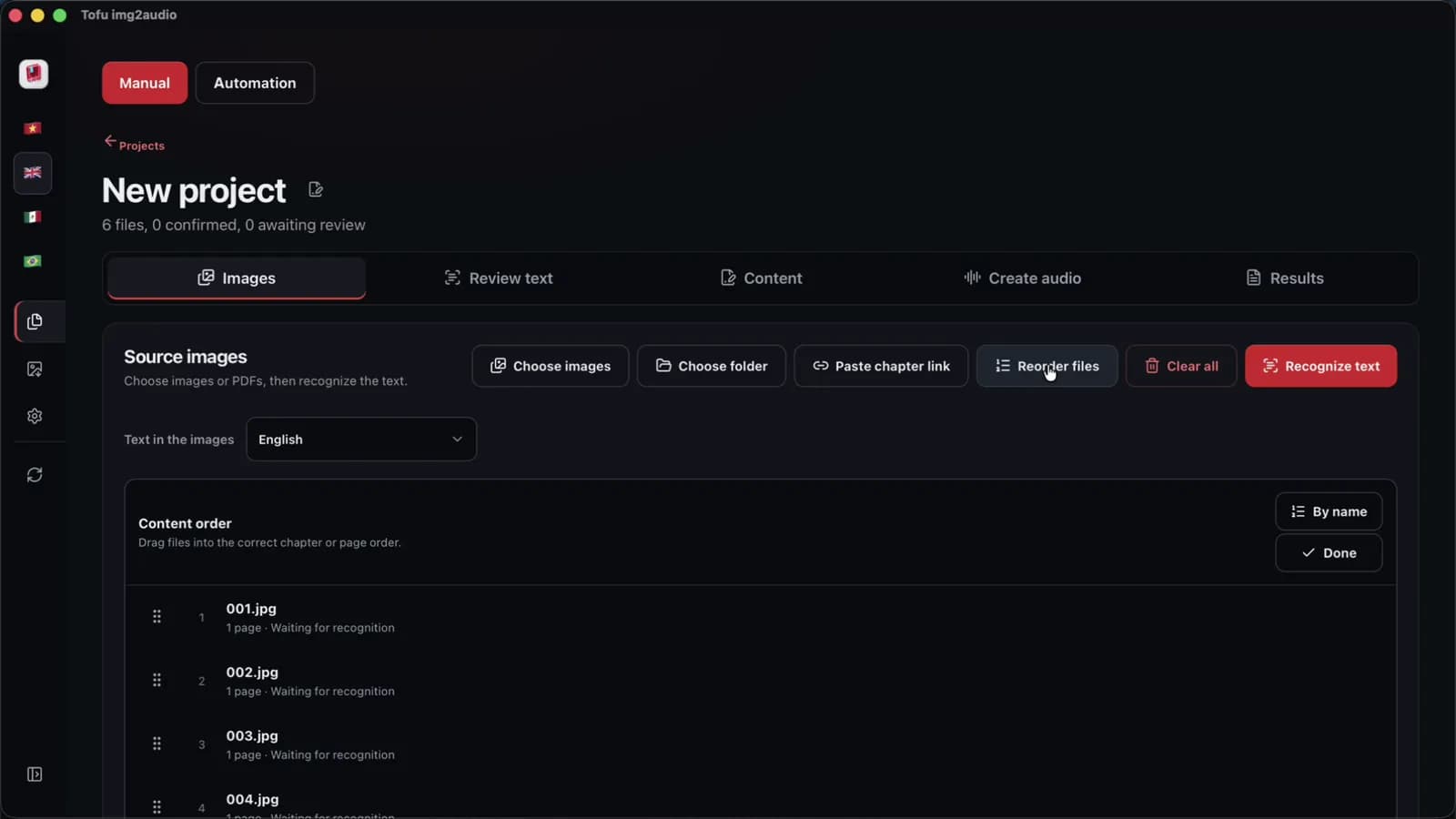
A desktop app helps when scans are long, private or frequent. Tofu Image Text is a pay-once desktop app for Windows 10 or later and Apple silicon Macs (M1 or later). The app opens scanned PDFs and image folders, reads the pages with OCR on the computer, and shows each page beside its text for quick fixes. The result exports as TXT or a Microsoft Word (.docx) file. Supported text covers English, Spanish, Portuguese and other Latin-alphabet languages, plus Vietnamese. The page images are not uploaded for OCR, though the app needs internet to check the license. On an Apple M4 Pro, we measured OCR on a short 6-page chapter at 2 seconds, in one recorded run with clean sample pages. Accuracy on real scans is not measured yet. For instance, a 30-page scan still needs a read-through for names and numbers before the Word file goes out.
What should you check after converting a scanned PDF to Word?
Review means the check between OCR and a document you can trust. OCR mistakes cluster in a few places, so a targeted check is faster than reading every word. First, check numbers: amounts, dates and reference codes, where one wrong digit changes the meaning. Second, check names of people, companies and places, which OCR may split or misspell. Third, check the reading order on pages with two columns or side notes. Finally, check headings and page breaks, since OCR can merge a heading into the paragraph below. The PowerToys documentation from Microsoft warns that OCR output may not be perfect and needs a quick proofread, and the warning applies to every OCR tool. For instance, a figure such as 12,500 can come back as 12.500, and a spell checker will not flag the change. Review with the page beside the text, not from memory.
How do you fix the layout of a scanned PDF in Word?
Layout repair is the last step, and the fastest repair uses Word styles instead of manual formatting. First, select the whole document and apply the Normal style, which removes stray fonts from the OCR. Second, apply Heading 1 and Heading 2 to the headings, so Word builds a navigation pane and a table of contents. Third, rebuild tables with Insert, Table, then paste each row in, rather than fixing tab-separated lines by hand. Finally, add page numbers and headers from the Insert menu. In practice, say a 30-page report has ten headings and three tables: the report can spend most of the time on the tables. In Word from Microsoft, Find and Replace can also remove double spaces and stray line breaks in one pass. If the original layout must match exactly, a scan is the wrong source; ask for the original file from the author when possible.
FAQ
Can Microsoft Word open a scanned PDF directly?
Microsoft Word can open many PDF files, but a scanned PDF has no text layer under the images, so the dependable route is OCR first and Word second. Google Docs from Google can run the OCR for files of 2 MB or smaller, then download a .docx file. A desktop app such as Tofu Image Text runs OCR on the computer and exports Word (.docx) directly, with the page beside the text for review. In practice, a short scanned letter works well through Google Docs, while a 100-page private archive suits a desktop app with a review screen. Whichever route you use, plan a review of names and numbers and a formatting pass in Word. OCR keeps the words, not the design, so tables and columns need rebuilding after the conversion, page by page.
Is converting a scanned PDF to Word free?
Converting a scanned PDF to Word can be free for small, clean files. Google Docs from Google converts PDFs at no cost when you open the file with Google Docs, within limits such as 2 MB per file and text at least 10 pixels high. Tesseract, an open-source OCR engine under the Apache-2.0 license, is free but runs from the command line. A 5-page scan of plain text, for instance, fits the free Google route well. Costs appear with volume, privacy and time: splitting large files, uploading private documents and fixing pages one by one. A pay-once desktop app such as Tofu Image Text trades a one-time payment for batch folders, on-computer OCR and direct Word export. Test the free route first on one real file, then decide with real numbers from that test.
Why does OCR mix up columns in a scanned PDF?
OCR mixes up columns because simple OCR reads a page in horizontal lines, from left to right across the whole width. On a two-column page, lines from both columns end up in one sentence. Google says Drive OCR is not likely to detect columns, tables, lists, footnotes and endnotes. For example, a two-column newsletter can come out as alternating half-lines. The fix is to split such pages before OCR: first crop each column into its own image, number the crops in reading order, then run OCR on the folder. Tofu Image Text shows each page beside the text, which makes mixed lines easy to spot.
Next step: test one page of your scanned PDF for a text layer, then convert a short sample with Google Docs or a desktop app and review the numbers. If scans are long, private or frequent, see Tofu Image Text for OCR on the computer with Word export, and read image to Word converter for single images.