
How to Convert Word to EPUB (DOCX to EPUB), Cleanly
A Word file converts to a clean EPUB when its structure is in styles, not in manual formatting. Here is how to prepare it, and three free ways to convert.
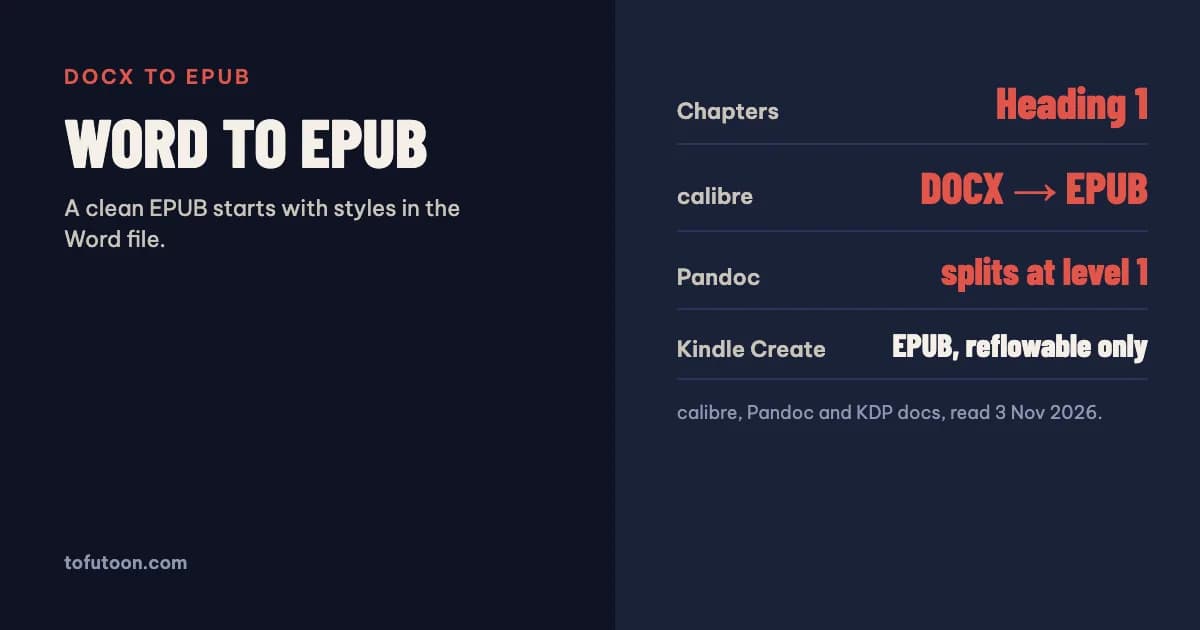
To convert Word to EPUB cleanly, first make the DOCX structural: chapter titles in Heading 1, body text in one paragraph style, page breaks between chapters, no manual spacing. Then convert it with a free tool such as calibre or Pandoc, or export an EPUB from Kindle Create. The quality of the EPUB depends far more on the Word file than on the converter. If you only publish on Amazon, KDP also accepts the DOCX directly.
Why does DOCX to EPUB conversion go wrong?
Word shows a page; an EPUB stores structure. Converters have to guess which text is a chapter title, which is a paragraph and where a chapter ends, and they guess from styles. A chapter title typed in 16 point bold looks like a heading on screen, but it is just a large paragraph, so it never reaches the table of contents. Blank lines used for spacing become empty paragraphs, Tab indents disappear or turn into odd gaps, text boxes and floating shapes fall out of the reading order, and running headers or page numbers from a print layout end up as stray text. Even KDP, which accepts DOC and DOCX directly, warns that files with complex formatting may not convert well. The fix is the same for every converter: give the document real structure with styles before you convert, and remove anything that only exists for printed pages.
How should you prepare the Word file?
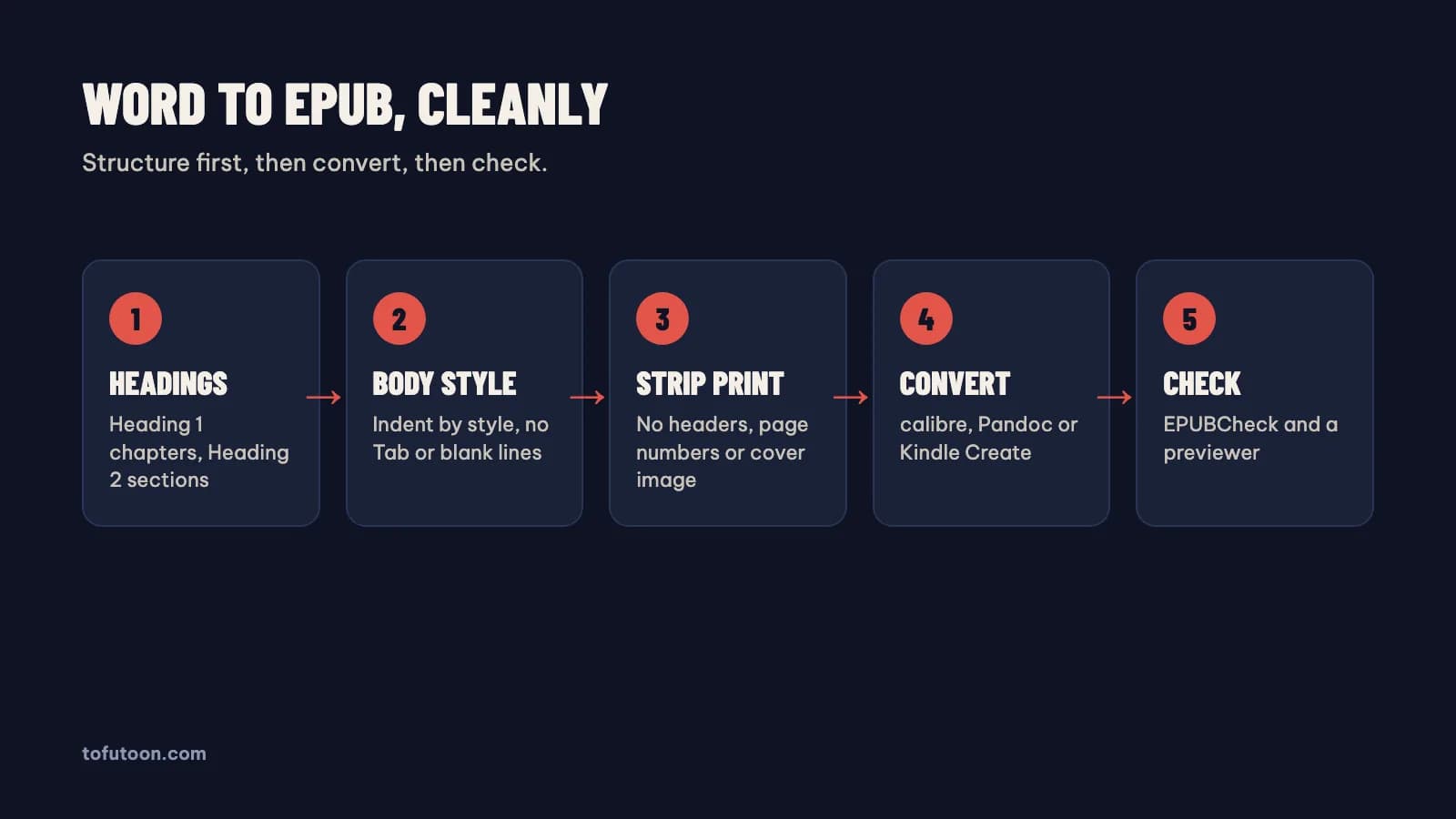
Apply Heading 1 to every chapter title and Heading 2 to sections inside chapters. calibre’s manual says it generates the table of contents automatically from headings marked with the Heading 1, Heading 2 styles in Microsoft Word (calibre: Convert Microsoft Word documents). Set the body text style once, with a first-line indent and no space before or after, rather than indenting with Tab. Insert a page break before each chapter, delete stacked empty paragraphs, and remove headers, footers, page numbers and the cover image, since an eBook reflows and the store adds the cover. Insert images inline with the text rather than floating. Fill in File → Properties with the title and author, because some converters read them as metadata. If the file is an old .doc, calibre suggests opening it in Word or LibreOffice and saving it as .docx before converting.
Which free tools convert Word to EPUB?
Four free options cover most authors. calibre converts .docx files from Word 2007 and newer: add the file to calibre and click Convert, choosing EPUB as the output. Pandoc, a free command-line converter, does it with one command, pandoc mybook.docx -o mybook.epub --metadata lang=en (use your own language code); its manual says EPUB output is EPUB 3 by default, that it splits chapters into separate files at level-1 headings, and that a cover is added with --epub-cover-image (Pandoc User’s Guide). Kindle Create, Amazon’s free app, imports a DOCX and can export an EPUB for reflowable books, though KDP notes that the EPUB loses some Kindle features such as image bleeds and chapter-start images, and that publishing outside Kindle is unsupported (KDP: Getting Started with Kindle Create). On Windows, the DAISY Consortium’s free WordToEPUB adds an EPUB export to the Word toolbar or runs as a separate app, and it is built for accessible output (DAISY: WordToEPUB). Online converters also exist, but they upload your manuscript to a third-party server, which matters for an unpublished book.
What does a real Pandoc 3.13 test show?
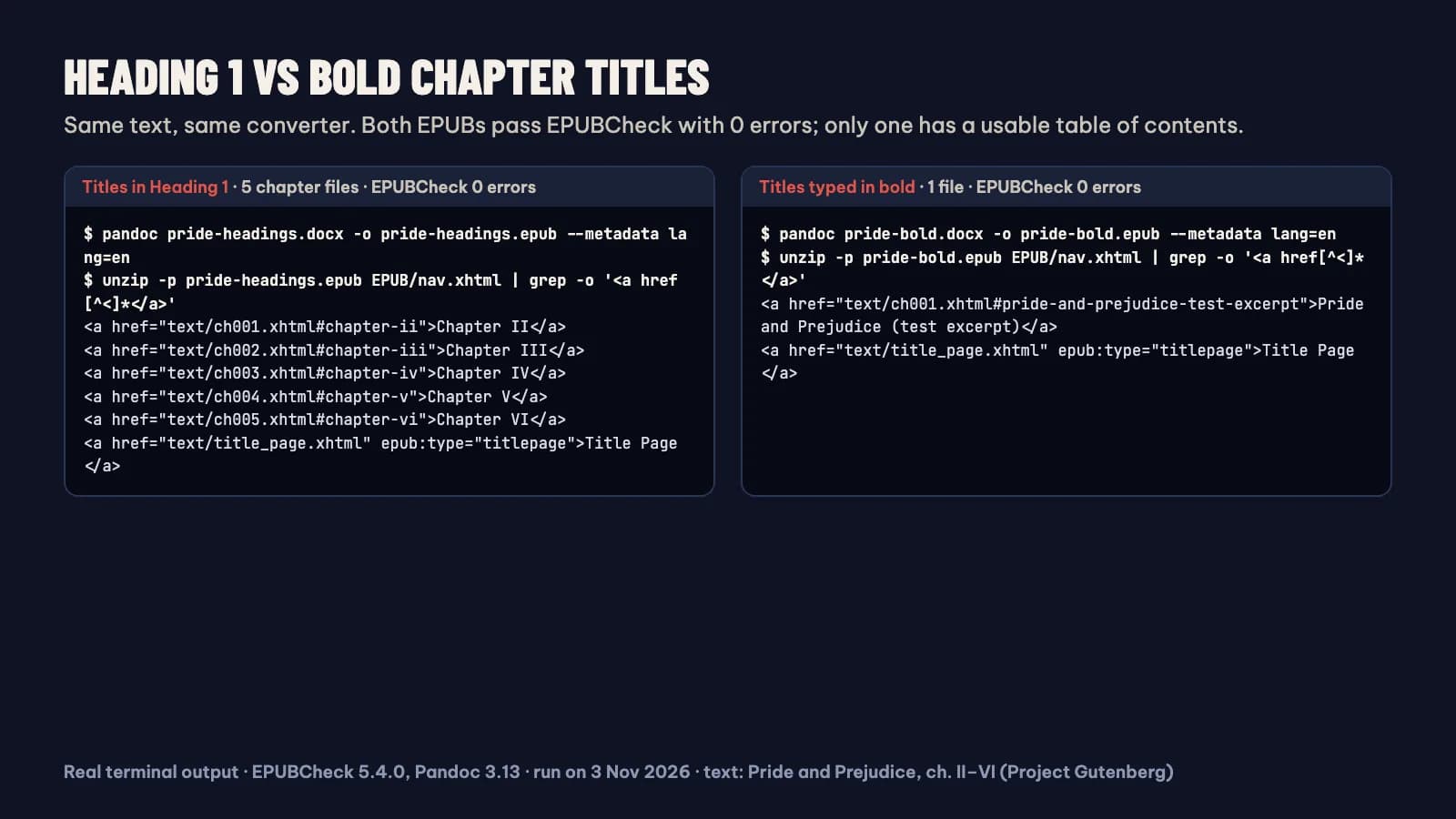
On 3 November 2026 we converted two test DOCX files with Pandoc 3.13. Both held the same five chapters of Pride and Prejudice from Project Gutenberg; in one the chapter titles used the Heading 1 style, in the other they were bold body text. We built the files with Pandoc for the test rather than typing them in Word, but the style names inside a DOCX are the same either way. The Heading 1 version became five chapter files with five entries in the table of contents. The bold version became a single file whose contents listed only the book title, and EPUBCheck still reported 0 errors for it, so a validator alone would not have caught the problem. Our first run also failed EPUBCheck with a language error, because neither the DOCX nor the command set a language and Pandoc then falls back to the computer’s locale (Pandoc User’s Guide). Setting the language fixed it.
Do you even need an EPUB for Amazon?
Not necessarily. KDP lists DOC/DOCX, KPF and EPUB as its recommended eBook formats (KDP: supported eBook formats), so a well-styled Word file can go to Amazon as it is. An EPUB earns its keep when you publish wide: Apple Books, Kobo, Google Play Books and aggregators take EPUB, and one clean file can serve all of them, including Amazon. Whichever route you choose, check the result before upload. Run the EPUB through EPUBCheck, the official validator; open it in Kindle Previewer for Amazon; and page through the table of contents, the first page of every chapter and any images. When something is wrong, fix the Word file and convert again instead of patching the EPUB, so the next export is right too.
FAQ
Can Word save as EPUB directly?
Not on its own: Word has no built-in Save as EPUB option. On Windows, DAISY’s free WordToEPUB add-in adds one to the toolbar; on any system, calibre or Pandoc converts the DOCX. KDP accepts the DOCX itself if Amazon is your only store.
Why is my table of contents empty after conversion?
The chapter titles were formatted by hand instead of with heading styles. Apply Heading 1 to each chapter title in Word and convert again; calibre and Pandoc both build the contents from headings.
Next step: for plain-text manuscripts, the free TXT to EPUB converter builds an EPUB in your browser, and EPUB to Word goes the other way when you need to edit an existing book. Then check the result as described in EPUBCheck: how to validate an EPUB. A dedicated route is in development too: a pay-once book formatter for Windows and Mac that imports the DOCX, reads the chapter structure from your styles and exports a store-ready EPUB and a print PDF, offline. Join the waitlist.