
Make a comic dub video in CapCut: voice track, panels, export
With one audio file per chapter, the last step is placing the panels on the voice. Here is a fast CapCut desktop routine for a comic dub video.
A comic dub video is a video where comic panels play on screen while a voice track reads the dialogue or a narration. The edit is the last step: by the time CapCut opens, the chapter audio and the panel images should already exist. The fastest routine using CapCut is audio first. Put the voice track on the timeline, then stretch each panel to match the line being read. For example, a 6-minute chapter track with 30 panels gives each panel about 12 seconds on average, and the dramatic panels get more. The guide first lists what to prepare before CapCut, then walks through the edit in CapCut desktop from ByteDance, step by step. Finally, the guide covers the export settings for YouTube and Shorts and how to work faster across many chapters. Voice and script steps are in comic dub with AI voices.
What should be ready before a comic dub video goes into CapCut?
Three things should be ready before the edit: the audio, the panels and a cut list. First, the audio is one finished voice track per chapter, with the narrator and character lines already in order. Second, the panels are cropped images, numbered in reading order from 001 upward, so CapCut imports the panels in sequence. A tall Webtoon strip needs slicing at the gutters between panels, with Photoshop, GIMP or another image editor, never through a speech bubble. Third, a cut list is a plain text note of which panel goes with which line, which is optional but useful for long chapters. For instance, a chapter of 12 pages can split into 25 to 40 panels, depending on the layout. Only use chapters you have the right to use, and read recap videos and copyright before the first upload. A clean folder saves more editing time than any CapCut shortcut.
How do you edit a comic dub video in CapCut desktop?
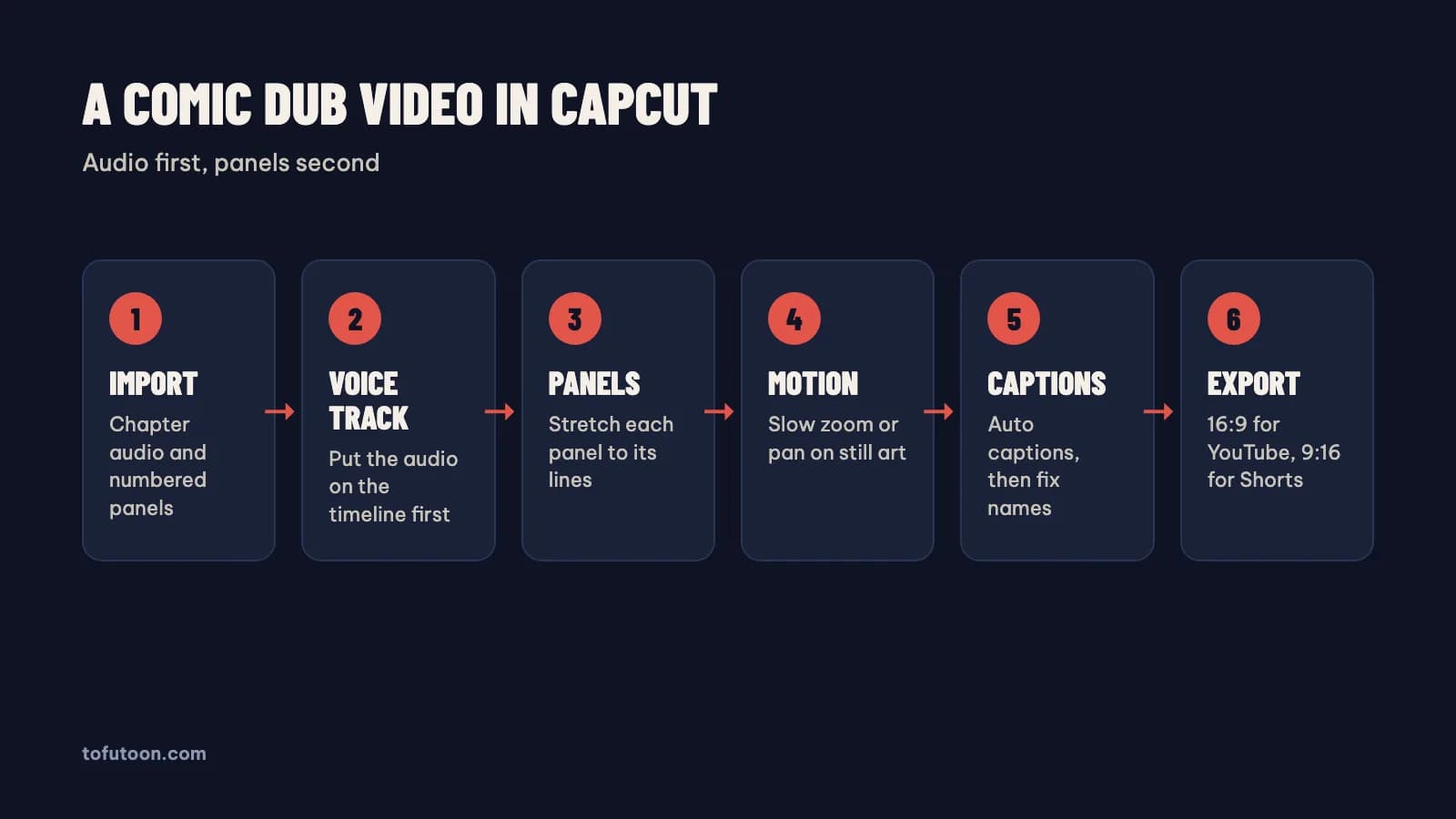
CapCut desktop is the editor where the panels meet the voice track, and the editor from ByteDance builds a comic dub video in six steps, in the same order every chapter:
- Import the chapter audio and the numbered panels into one CapCut project.
- Put the voice track on the timeline first, before any image.
- Drag the panels onto the video track in order, then stretch each panel to the line the voice reads.
- Add one slow zoom or pan per panel with keyframes, so still art keeps moving.
- Generate auto captions, then fix character names and invented words by hand.
- Export at 16:9 for YouTube, or make a vertical cut of a key scene for Shorts.
In practice, step 3 takes the most time, because each panel needs a start and an end. Play the audio, pause at each new line, and drag the panel edge to the playhead. Keep reaction panels on screen a beat longer than the line, since a reaction lands after the words.
Which export settings fit a comic dub video on YouTube and Shorts?
A full comic dub video fits YouTube at 16:9, and a short scene fits Shorts in vertical format. The standard aspect ratio on a computer is 16:9, according to YouTube upload guidance on the upload settings page, and the player adapts to vertical or square videos. The three-minute Shorts page covers short videos. Since October 15, 2024, square or vertical uploads up to three minutes long count as Shorts. In practice, a 6-minute chapter dub goes up as a normal 16:9 video, and a 50-second fight scene from the same chapter can go up as a 9:16 Short. The Short then points to the full episode. Comic pages are tall, so a vertical crop can show one panel at a time without black bars. Check the captions again after a vertical crop, because the caption position changes.
How do you make comic dub videos faster across many chapters?
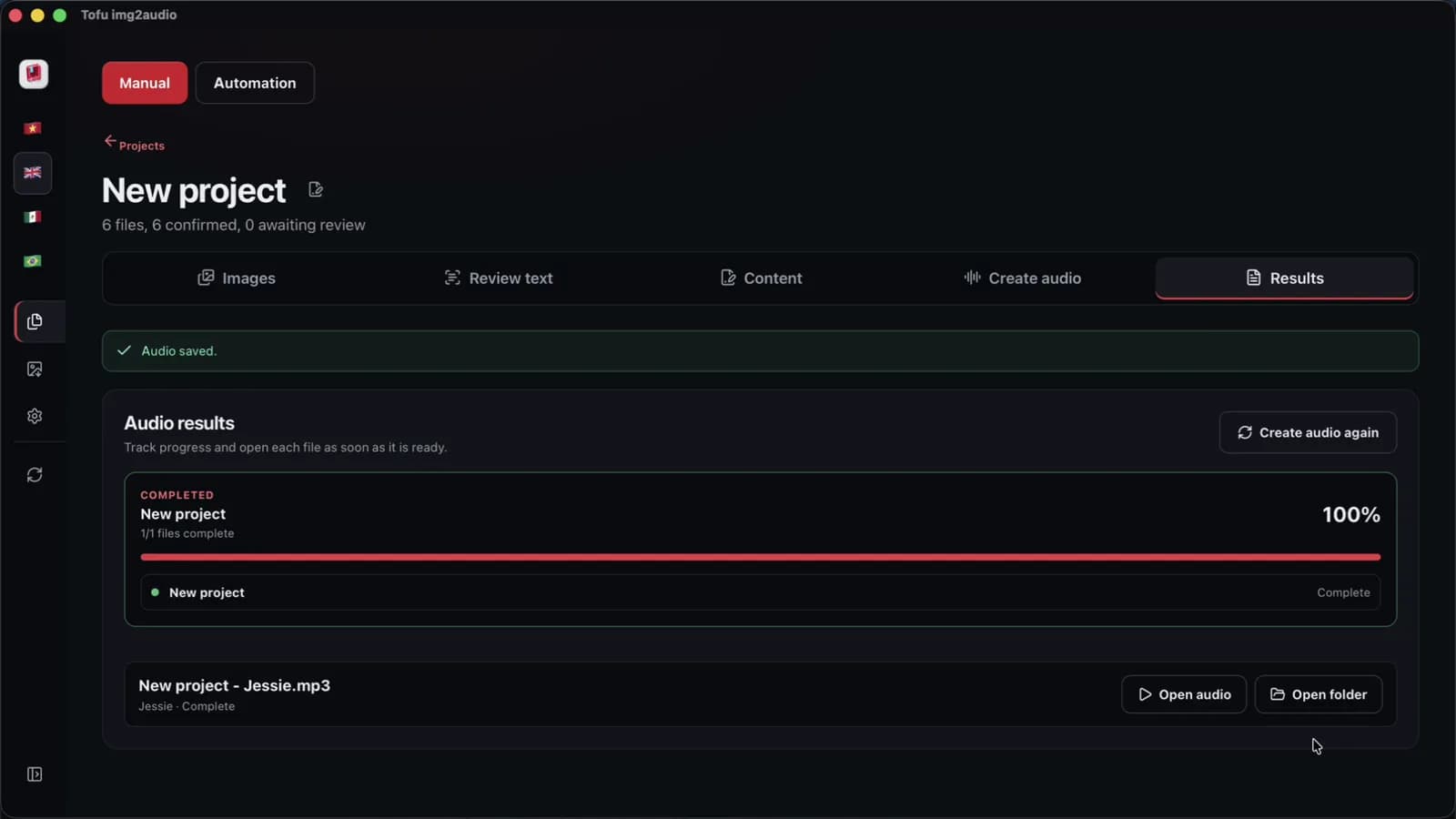
Speed across many chapters comes from repeating one setup, not from rushing each edit. Save one CapCut project as a template with the intro, the end card, the caption style and the zoom settings. Duplicate the template for every new chapter and replace the audio and the panels. Most of the time before the edit goes into retyping bubbles and generating audio. Tofu Image Text is a pay-once desktop app for Windows 10 or later and Apple silicon Macs (M1 or later). The app reads the bubbles with OCR on the computer, rewrites the dialogue with your own AI key if wanted, and saves one audio file per chapter, named in order. Edge voices from Microsoft and CapCut voices send the script text to that voice service. On an Apple M4 Pro, we measured CapCut audio for a short chapter of 6 pages at 38 seconds, in one recorded run. The app exports audio and text, not video, so the edit stays in CapCut.
FAQ
Is the free version of CapCut enough for a comic dub video?
CapCut is a video editor from ByteDance, and the free version of CapCut desktop covers the core comic dub video edit: a voice track, image clips, keyframe zooms, captions and a 16:9 or vertical export. Some effects, templates and AI features in CapCut sit behind the paid Pro plan, and the list changes, so check inside the app before planning an edit around one feature. For example, a plain comic dub with panels, a slow zoom per panel and captions needs no paid effect at all. The voice and the text come from other tools, such as Microsoft Edge voices, CapCut voices or Tofu Image Text. Start with the free plan for the first few chapters. Upgrade only when a specific missing feature slows down every episode, and write down which feature that is.
What is the difference between a comic dub and a comic recap?
A comic dub voices the dialogue of the characters, often with several voices, so the video plays like an audio drama over the panels. A comic recap uses one narrator who retells the chapter in third person and adds commentary. The CapCut edit is almost the same for both: the voice track goes first and the panels follow the lines. For instance, a dub of a chapter of 12 pages may need a separate clip for every bubble, while a recap of the same chapter uses one narrator track. A hybrid also works: one narrator plus a few voiced key lines, with Microsoft Edge or CapCut voices for the characters and one steady narrator voice for every other line. The full format guide, with scripts and voices, is in [how to make manhwa recap videos](/blog/how-to-make-manhwa-recap-videos).
How long does a comic dub video take to edit in CapCut?
Edit time for a comic dub video depends on the panel count more than on the audio length, because every panel needs a start, an end and a zoom. A chapter with 30 panels is 30 small decisions, and a chapter with 60 panels is twice the work. No fixed time fits every chapter. In practice, time your first three edits of a chapter of 12 pages with a stopwatch, divide by the number of panels, and use that number to plan the next chapters. A template saved using CapCut removes the repeated work: intro, end card, caption style and zoom settings. The routine also gets faster as the six steps become familiar.
Next step: prepare one chapter folder with the audio and numbered panels, then edit the chapter in CapCut with the six steps above and save the project as a template. To get the chapter audio without retyping bubbles, see Tofu Image Text.